Shopping links in this guide go to official brand pages and are not affiliate links. We do not earn a commission from them. Our disclosure
A webcam upgrade can improve framing and let you place the camera where a laptop screen cannot go. That is often more useful than chasing resolution alone. A camera pointed toward a bright window can still produce an unsatisfying call, and your meeting service may not send the camera's full output. This guide compares a built-in camera with Logitech Brio 500 and MX Brio as practical options. It uses published capabilities, not hands-on image-quality rankings.
Keep a satisfactory built-in camera if better positioning and lighting solve the problem. Consider Brio 500 for an external 1080p setup, and MX Brio when you have a specific use for its higher-resolution capability. Verify your app and connection before paying for 4K.
Identify the problem in your current picture
Make a short recording using the application you normally use for calls. Look for the actual issue: awkward angle, too much background, a bright window behind you, or insufficient detail for a demonstration. Move the light source or camera position and repeat before concluding that new hardware is necessary.
A separate webcam is particularly useful when the laptop sits off to one side of an external monitor. It lets the camera follow your main screen instead of encouraging you to look away from the conversation. That positional improvement can justify a purchase even without a resolution increase. If you already appear clear and well framed, keep the existing camera and spend on the part of the meeting setup that is genuinely limiting you.
Compare the named options by use case
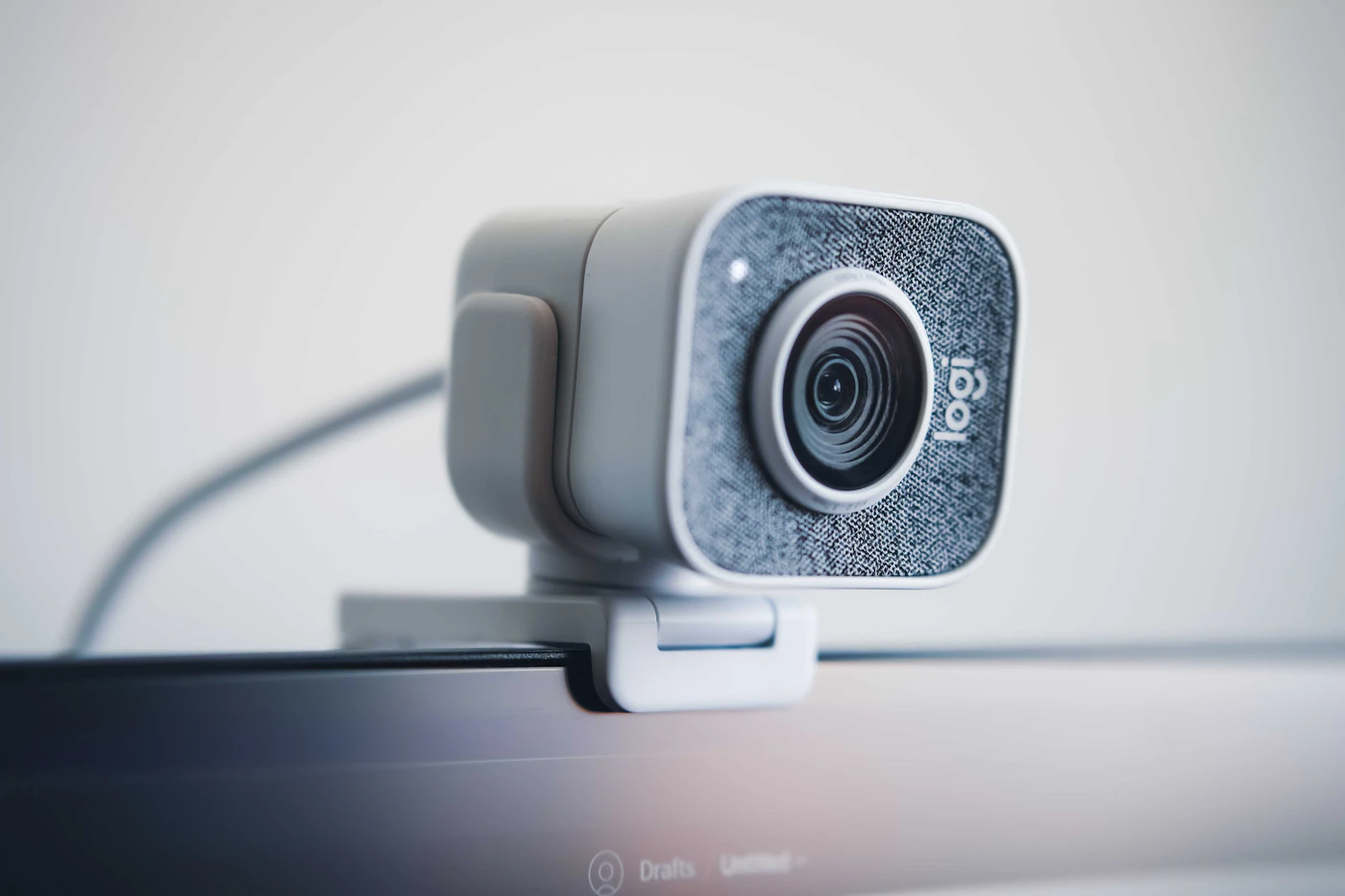
Logitech identifies Brio 500 as a Full HD 1080p webcam, with a privacy shutter and an attached USB-C cable documented in its guide. It is a relevant shortlist option for a desk where external positioning and an integrated cover matter more than maximum resolution. Its wider view also makes framing a question to consider before purchase.
MX Brio is marketed as a 4K webcam. That creates a different potential use case for local recording or supported applications, but does not prove better results in every meeting. Our inference is to consider the higher-resolution model when you can name the recording or framing task that benefits. For routine small video tiles, start by checking what your service actually transmits and whether your current image is inadequate.
Check mounting and background together
Measure the top edge of your monitor and consider whether a clip will obstruct anything. A lightweight laptop display can react differently to an accessory than a desktop monitor. Check cable reach to the computer or dock without pulling the camera out of position. If you want a tripod, verify the mounting provision and budget for the support itself.
Consider what appears behind you at the camera's available framing. A wide view can help with demonstrations or a shared desk, but it may reveal more room than you want in a solo meeting. A physical shutter offers a visible way to cover the lens when not in use; it does not control the microphone. Confirm audio inputs separately rather than assuming the video privacy control covers the whole call.
Treat the call as a complete system
The camera is one part of a chain that includes room lighting, microphone, application settings, connection, and the recipient's view. A premium model cannot remove every limitation elsewhere. Check whether the settings or features you want require manufacturer software and whether you can install it on a managed computer.
After purchase, test in the actual meeting service with another participant or a recording that reflects your normal setup. Confirm that the intended camera and microphone are selected, inspect framing, and try the lighting you encounter at different times of day. Keep the upgrade if it solves the identified problem. Avoid evaluating it solely in a manufacturer's preview utility, because a polished local preview does not guarantee the same result through your usual meeting workflow.
A closer look at the tradeoffs
| Option | Best fit | Tradeoff |
|---|---|---|
| Existing built-in camera | Calls already look clear after setup adjustments | Position follows the laptop |
| Logitech Brio 500 | External 1080p framing and a physical shutter | Attached cable and framing must suit the desk |
| Logitech MX Brio | A specific supported 4K recording requirement | Extra capability may not reach meeting viewers |
Before you buy
- Record the current problem first.
- Check meeting-service video support.
- Measure mount and cable placement.
- Verify microphone selection separately.
Confirm the exact model, compatibility, current price, and return policy at the official destination before ordering.
Compare webcams at Logitech ↗Common questions
Will colleagues automatically see 4K video?
No. Your application's supported settings, account configuration, network conditions, and the call itself can limit transmitted quality. Verify the service requirements before buying specifically for 4K. Local camera capability and remote viewing quality are different parts of the system.
Should I upgrade the webcam or add lighting first?
If the current problem comes from strong backlighting or a dim face, adjust placement and available light first. If the problem is camera angle or missing detail after those changes, an external webcam becomes more compelling. Use the observed problem to set the order.
Sources & further reading
Manufacturer documentation consulted October 10, 2026. Buying judgments are our editorial interpretation; published specifications do not establish real-world performance.
See something that needs updating? Send a correction.