Shopping links in this guide go to official brand pages and are not affiliate links. We do not earn a commission from them. Our disclosure
An external SSD can free space on a laptop, transport a project, or provide another copy of important files. Those uses sound similar, but they lead to different buying decisions. A drive that holds an archive mostly stays idle; one used for active video projects is part of your daily workflow. This guide explains how to choose for the actual job. It does not include hands-on speed measurements or claim that a manufacturer's maximum transfer figure will match your computer.
Buy enough capacity for the files you actually intend to keep, then match the drive's connection to your computer. Treat backup as a separate plan: an external drive containing the only copy of a file is storage, not redundancy.
Assign the drive a clear role
Decide whether the drive is for active projects, an archive, transfers between devices, or backup. If it must serve several roles, plan the folder structure and capacity before buying. Mixing temporary transfers with your only backup can make it harder to know what is safe to delete.
Measure existing folders and estimate realistic growth. A photo collection that expands every month needs more planning than a set of completed documents. Count working exports and duplicate versions when relevant. Avoid buying the largest capacity merely because the cost per gigabyte looks attractive; unused capacity has little value. Equally, do not select a drive that starts almost full and immediately requires a second purchase.
Check the slowest part of the connection
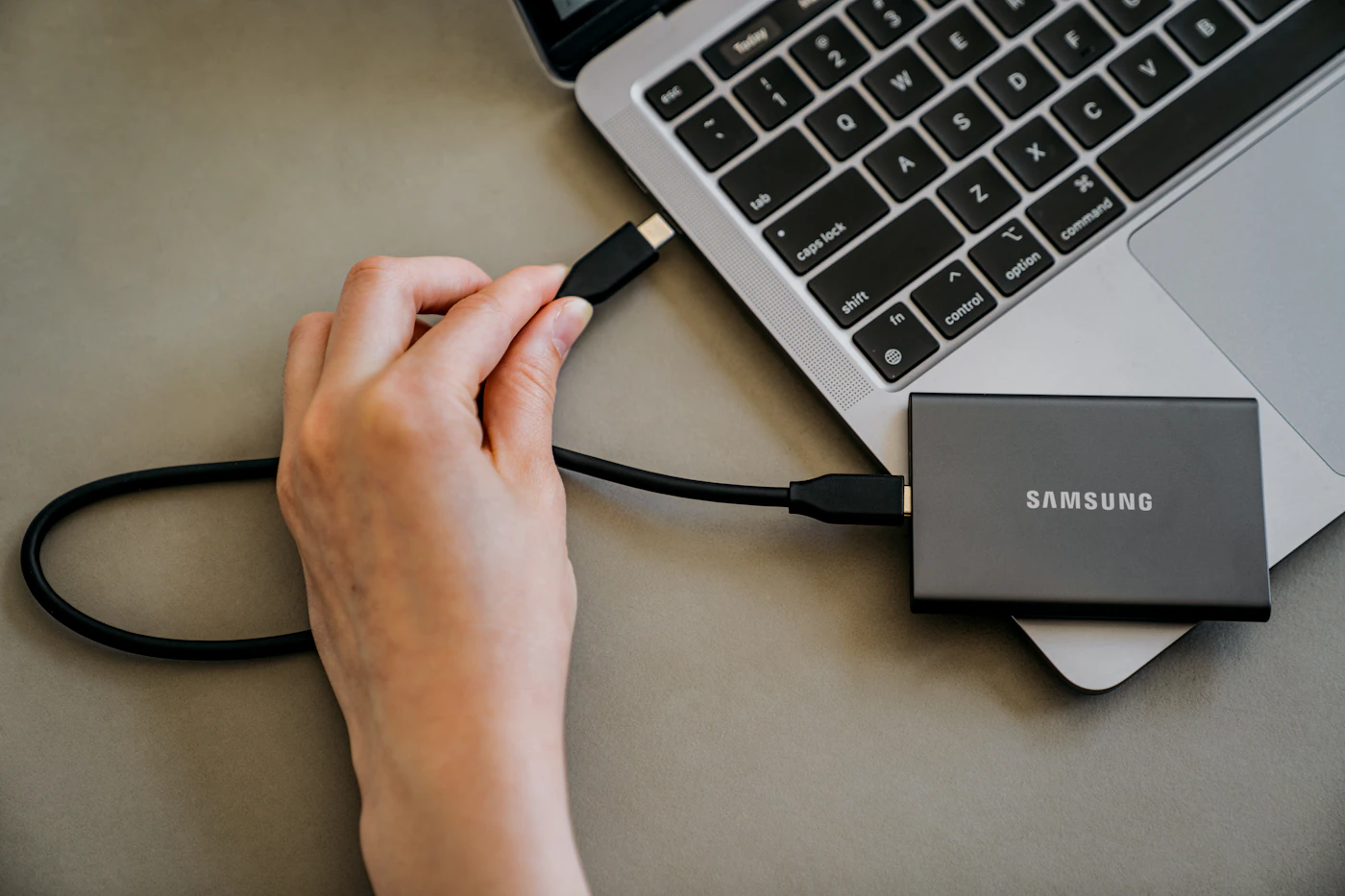
Read the drive's interface specification and compare it with the computer port and cable. A faster advertised drive cannot make an incompatible or slower connection operate beyond its capabilities. A hub or dock adds another component to inspect, especially when other high-bandwidth devices share it.
Manufacturer transfer figures describe particular conditions. Your mix of many small files, long writes, encryption, or application activity can behave differently. If your use is occasional document backup, paying extra for a high peak figure may deliver little practical benefit. If you edit directly from the drive, look for independent testing of sustained behavior with a workload similar to yours. Keep the supplied cable with the drive to reduce accidental connection mismatches.
Plan compatibility before moving files
Check the manufacturer's guidance for your operating system and intended file system. A drive shared between Mac and Windows needs an arrangement both can use for the intended task. Some backup applications require a specific format. Read those requirements before copying irreplaceable data, because reformatting can erase contents.
If encryption matters, determine how you will unlock the drive on every computer you use and how recovery information will be stored. A security feature that relies on unavailable software can complicate a shared workflow. Test with expendable files first. Confirm that you can create, open, modify, and safely disconnect files on each intended system before treating the drive as the home for a major project.
Keep portability separate from protection
A compact drive is easy to carry and easy to misplace. Consider a labeled pouch, a consistent storage location, and a cable that does not strain the port when the laptop moves. Rugged marketing does not eliminate the need to read the conditions attached to any durability rating.
Samsung's official portable SSD range is one place to compare capacity and interface options, but the same workflow checks apply across brands. Once the drive is in use, maintain an independent recoverable copy of important material. For an archive, periodically confirm that files remain accessible. For active work, ensure your backup routine includes the external volume rather than silently protecting only the laptop's internal drive. The accessory is most valuable when it fits a reliable habit, not merely when it creates more empty space.
A closer look at the tradeoffs
| Option | Best fit | Tradeoff |
|---|---|---|
| Everyday portable SSD | Documents, photos, and occasional transfers | Peak speed may not matter |
| Faster interface SSD | Compatible computers and demanding active projects | Benefits depend on the full connection |
| Dedicated backup drive | A separate recoverable copy | Needs a deliberate backup routine |
Before you buy
- Measure folders before choosing capacity.
- Match port, cable, and drive interface.
- Check formatting before copying files.
- Keep another copy of irreplaceable data.
Confirm the exact model, compatibility, current price, and return policy at the official destination before ordering.
Explore portable SSDs at Samsung ↗Common questions
Can I edit photos directly from an external SSD?
Often, but check your application's requirements and test the complete arrangement with a noncritical project. Keep the connection stable and include the drive in your backup routine. Convenience and reliability depend on the workflow, not just the storage device's advertised speed.
Is moving files off my laptop a backup?
No, not if that leaves only one copy. It expands or relocates storage. A backup provides another recoverable copy, ideally protected from the same failure or accidental deletion. Decide how you will recover a file before removing its original.
Sources & further reading
Manufacturer documentation consulted October 10, 2026. Buying judgments are our editorial interpretation; published specifications do not establish real-world performance.
See something that needs updating? Send a correction.